QuiNVarium Wallet
Manage assets
Show the assets you use and distinguish a trusted token from an unsolicited or misleading entry.
Use the asset manager to choose which supported coins and tokens appear on the wallet home screen. Hiding an asset changes the interface; it does not move or delete it on the blockchain.
Show an asset#
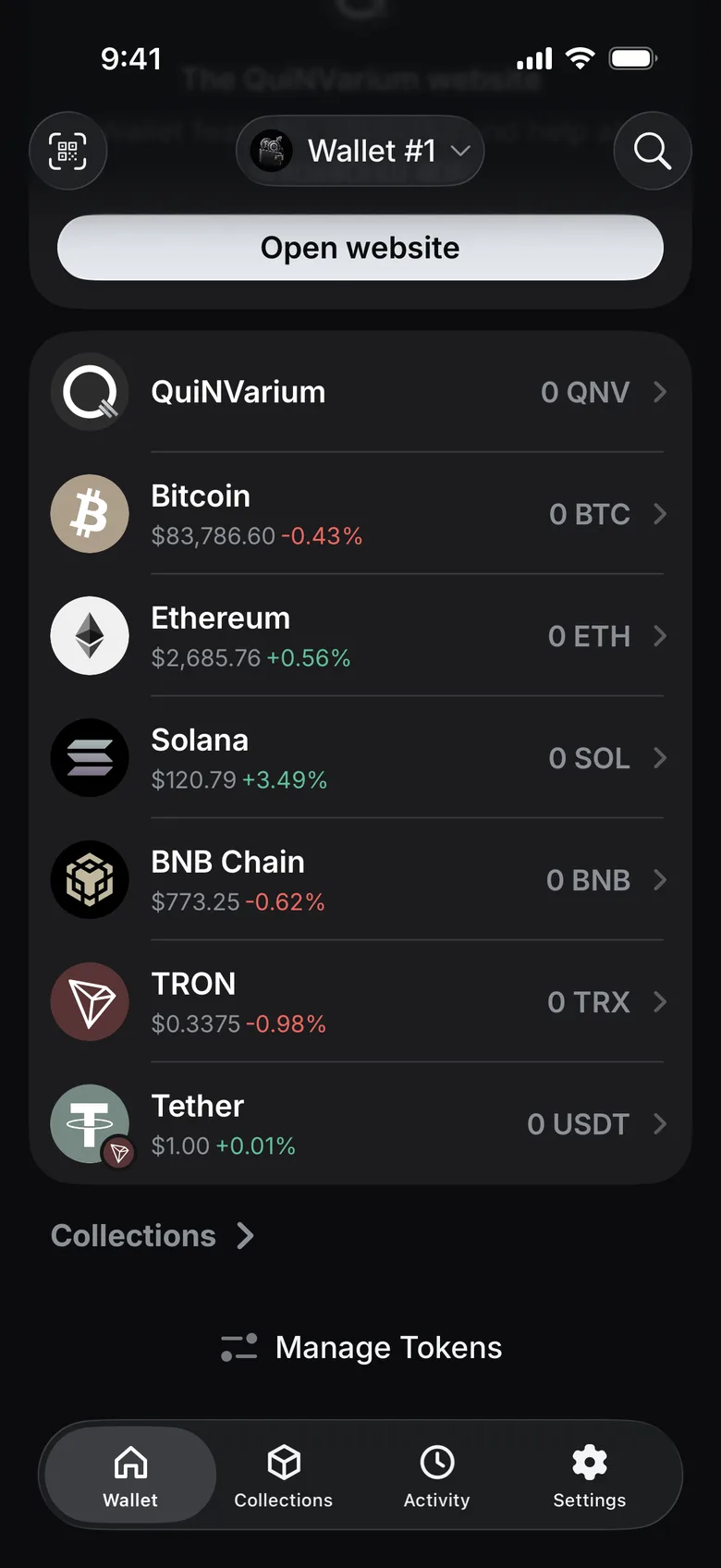
- On the wallet home screen, scroll down and tap Manage Tokens.
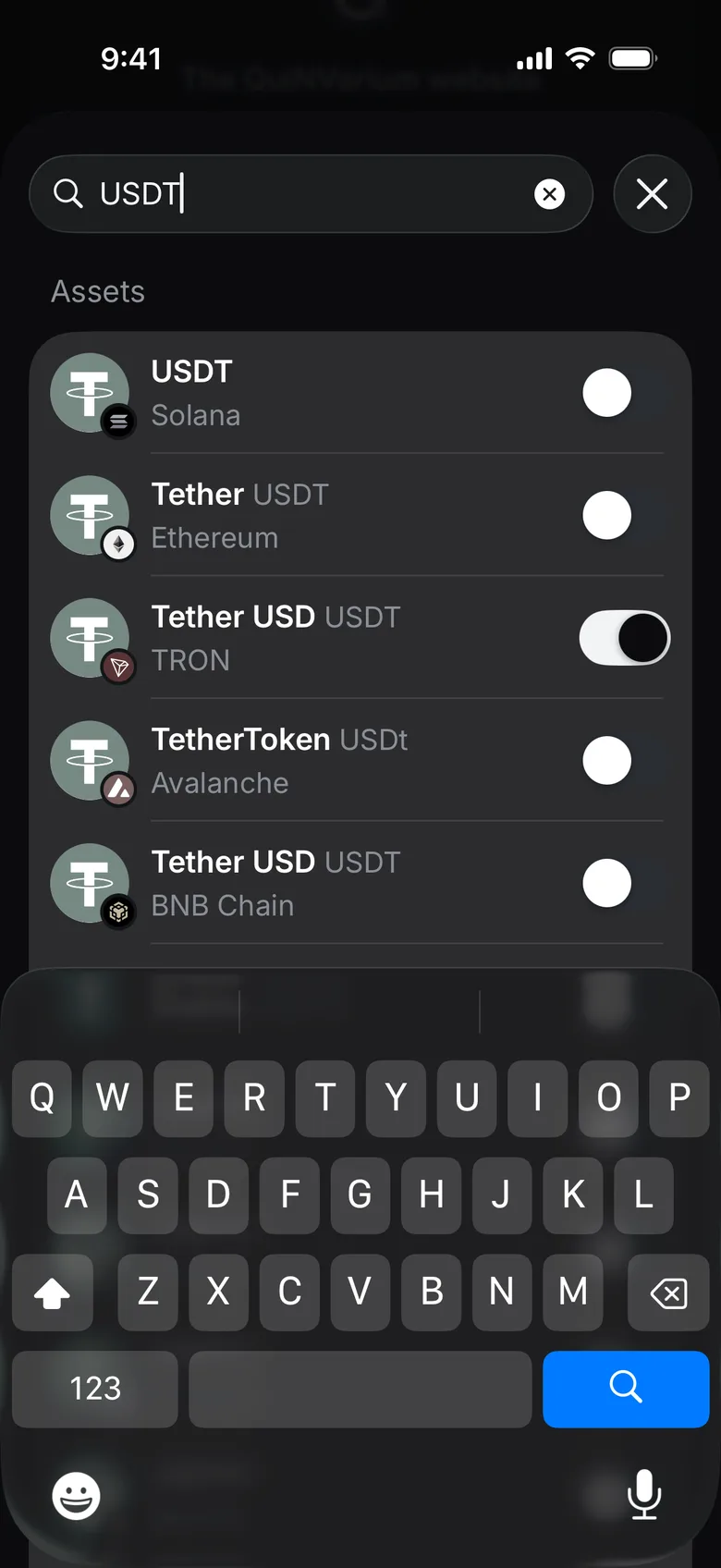
- Search by the asset name, symbol or contract address.
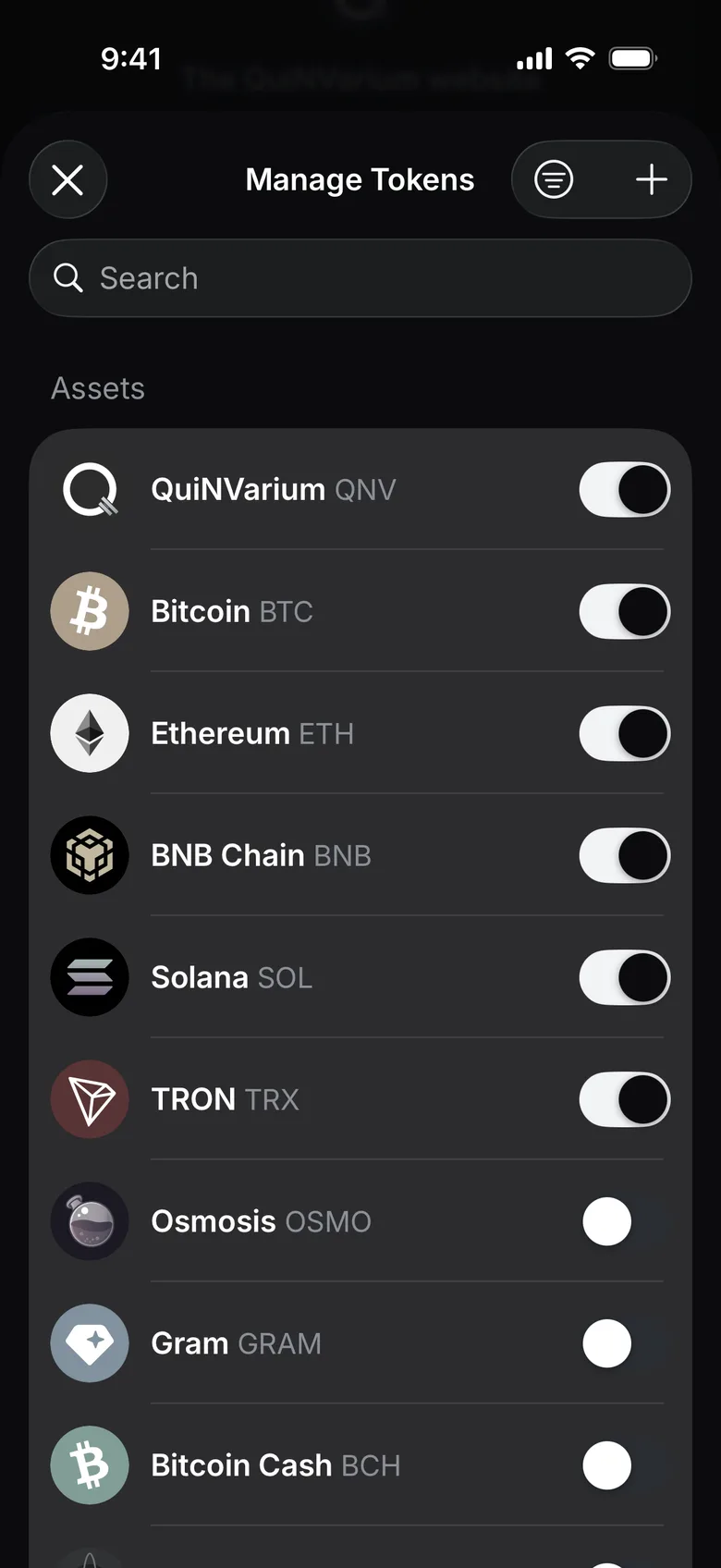
- Check the network under each result: the same symbol can exist on several networks.
- Turn on the switch next to the matching asset.
- Return to the home screen and check the network label.
Before adding a token#
Names and symbols are not unique. A fake token can copy a familiar name. Verify the network and contract through a source you trust before interacting with an unknown asset.
If the balance is still missing, follow Missing balance or token.