

QuiNVarium Wallet
Import or restore a wallet
Restore access in the verified QuiNVarium Wallet app without exposing the recovery phrase to a website or support agent.
Restore a wallet only inside the verified QuiNVarium Wallet app on a device you control.
Before you start#
- Verify the app through Official downloads.
- Close screen sharing and recording.
- Make sure no other person or camera can see the phrase.
- Confirm that the device is not rooted, jailbroken or managed by an unknown party.
Steps#
- On the welcome screen, tap Import an Existing Wallet. If you already have a wallet, open Settings → Wallets → Import an Existing Wallet.
- Choose Multi-Coin to restore every network from one recovery phrase, or choose a single network.
- Enter the recovery words in their original order, separated by spaces, or tap Paste.
- Tap Import.
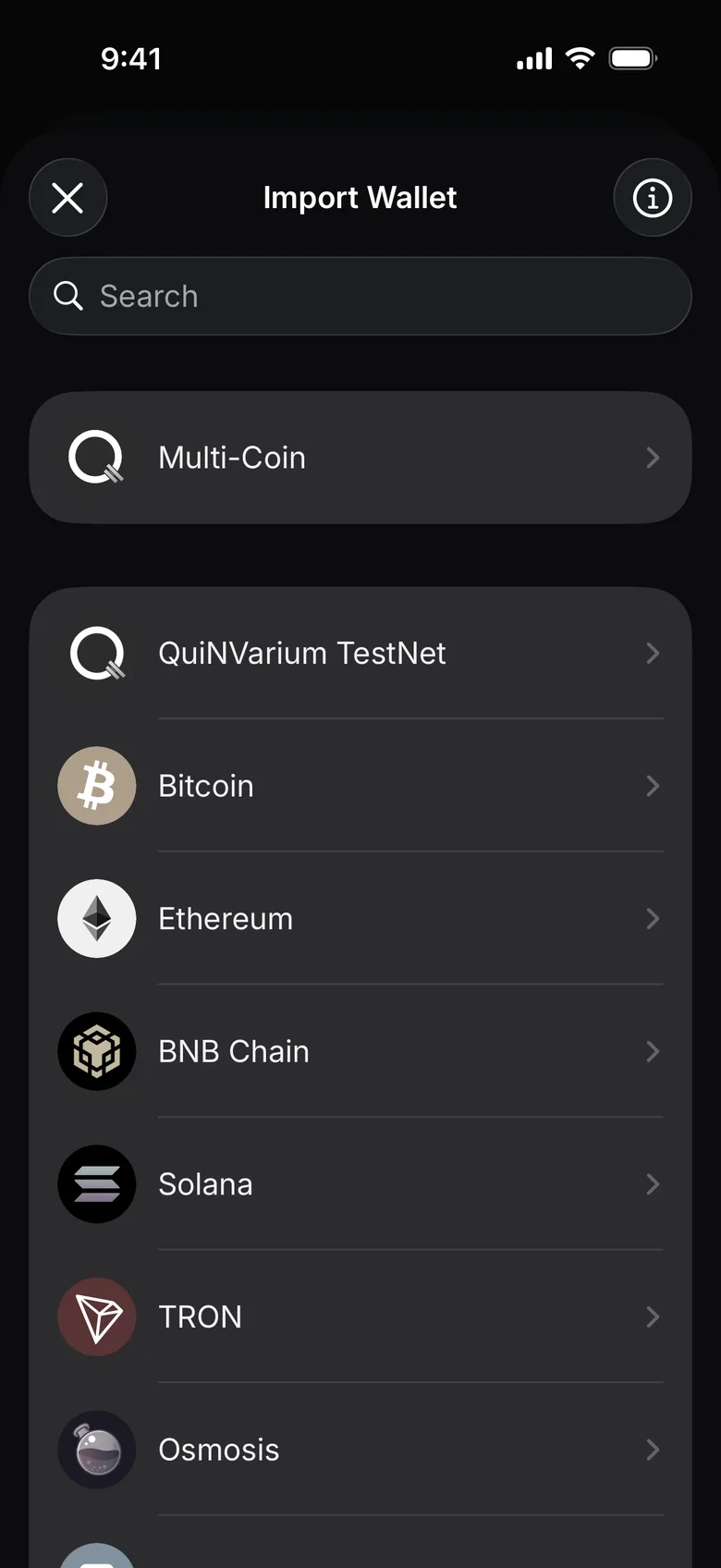
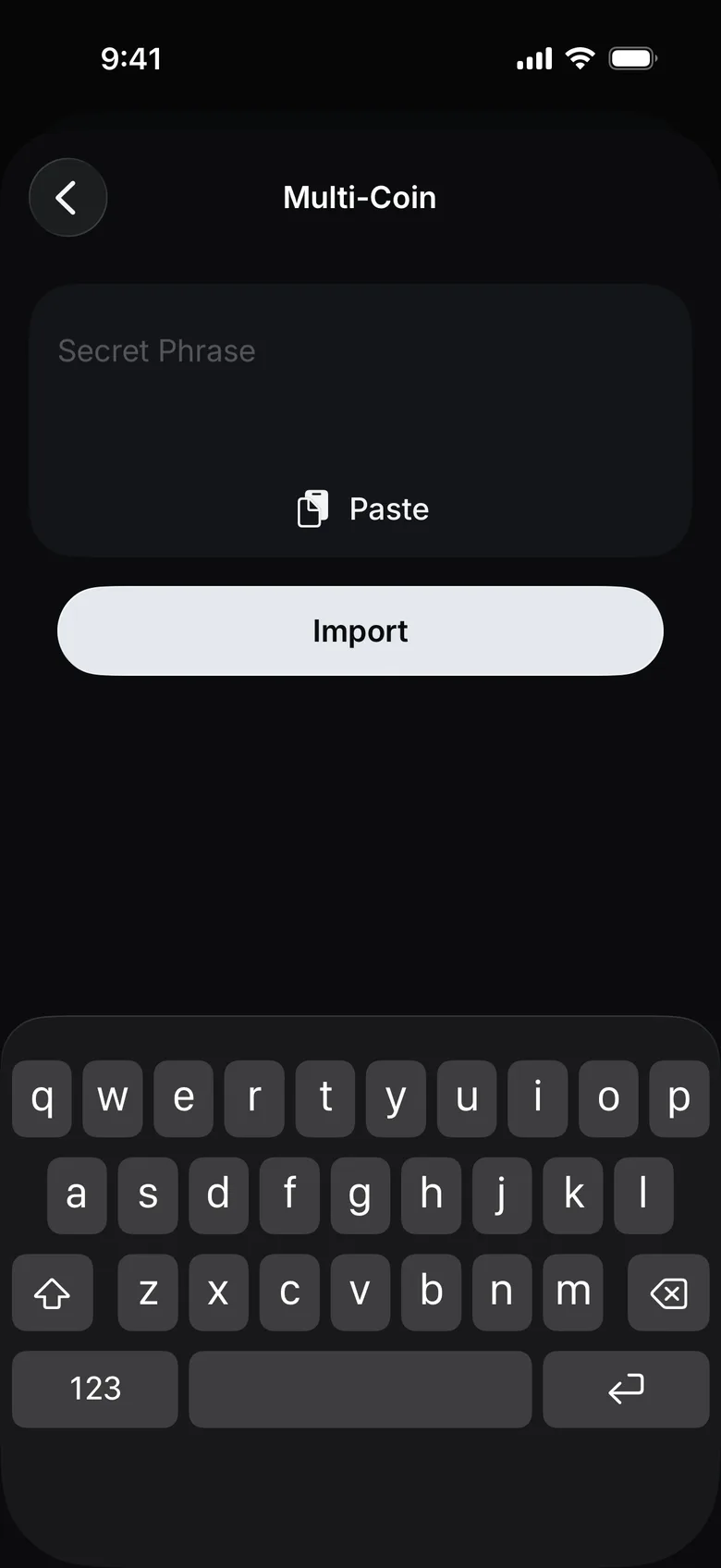
- Wait for the supported networks to load balances. Activity lists the transfers you send from the app; incoming transfers are listed on Ethereum, TON and TRON.
Check the result#
Known addresses or balances appear for supported networks. Some assets may need to be enabled in Manage assets.
If the expected balance is missing#
Do not repeat the phrase on another website. Check Missing balance or token and confirm that the original wallet used the same recovery method and account.