QuiNVarium Wallet
Receive an asset
Share the address for the correct asset and network, then track the transfer on the blockchain.
Use the receive screen for the exact asset and network that the sender will use.
Steps#
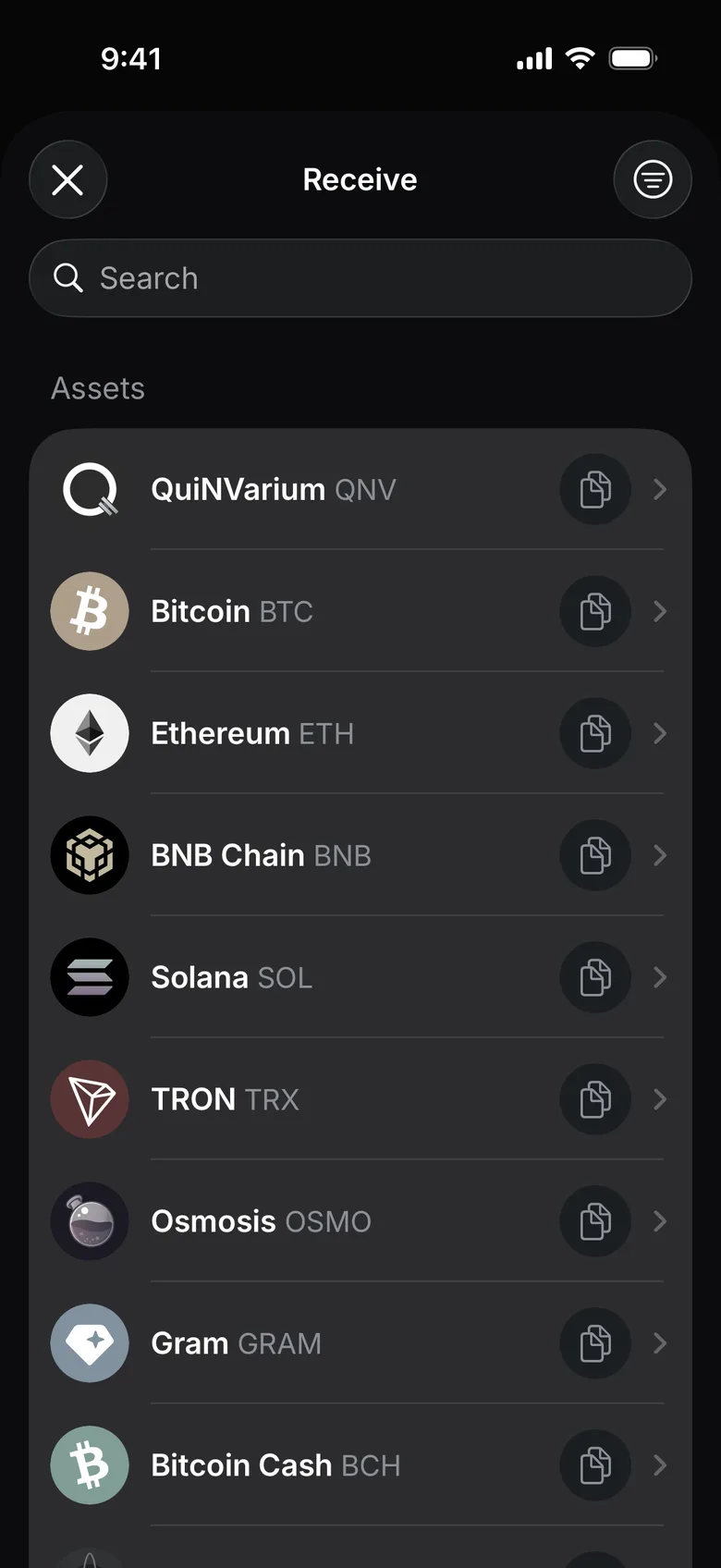
- On the wallet home screen, tap Receive.
- Choose the asset the sender will send.
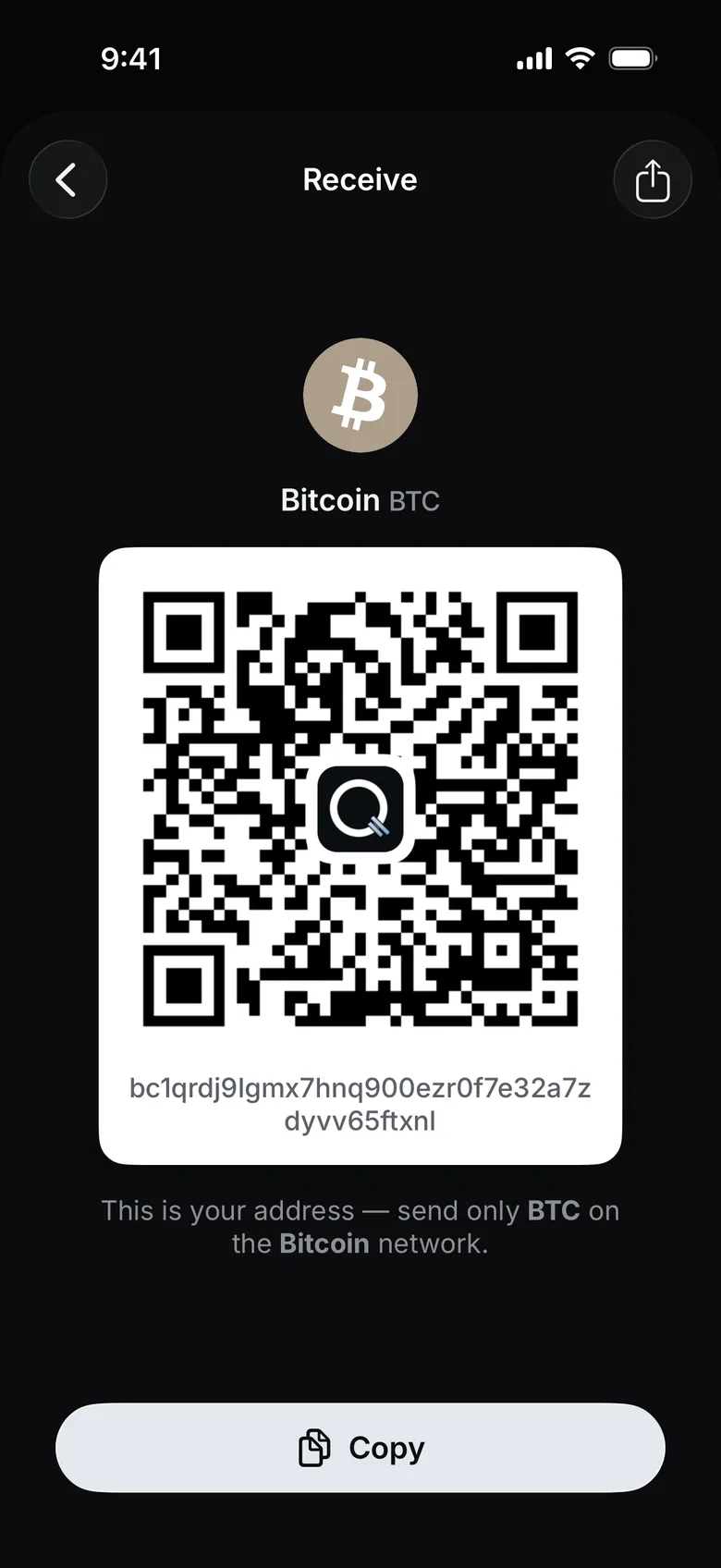
- Check the network named under the QR code: send only that asset on that network to this address.
- Tap Copy to copy the address, or show the QR code to the sender.
- Ask the sender to verify the network before sending.
What is safe to share#
A public receiving address can be shared to receive funds. It may reveal public blockchain activity connected to that address.
Memo or destination tag#
QuiNVarium Wallet uses a personal receiving address, so it does not require a memo or destination tag for incoming transfers. A sending exchange may still display a required memo field as part of its own withdrawal form; follow that exchange's instructions.
Check the result#
Wait until the balance updates. On Ethereum, TON and TRON the transfer also appears in Activity; on other networks check it in the network’s explorer by the sender’s transaction hash.
For the first transfer on a network, use Receive the first transfer.